Coming soon · First 300 exports free

BATCH PHOTO STRAIGHTENING FOR MAC

Fix the tilt.
Finish the set.

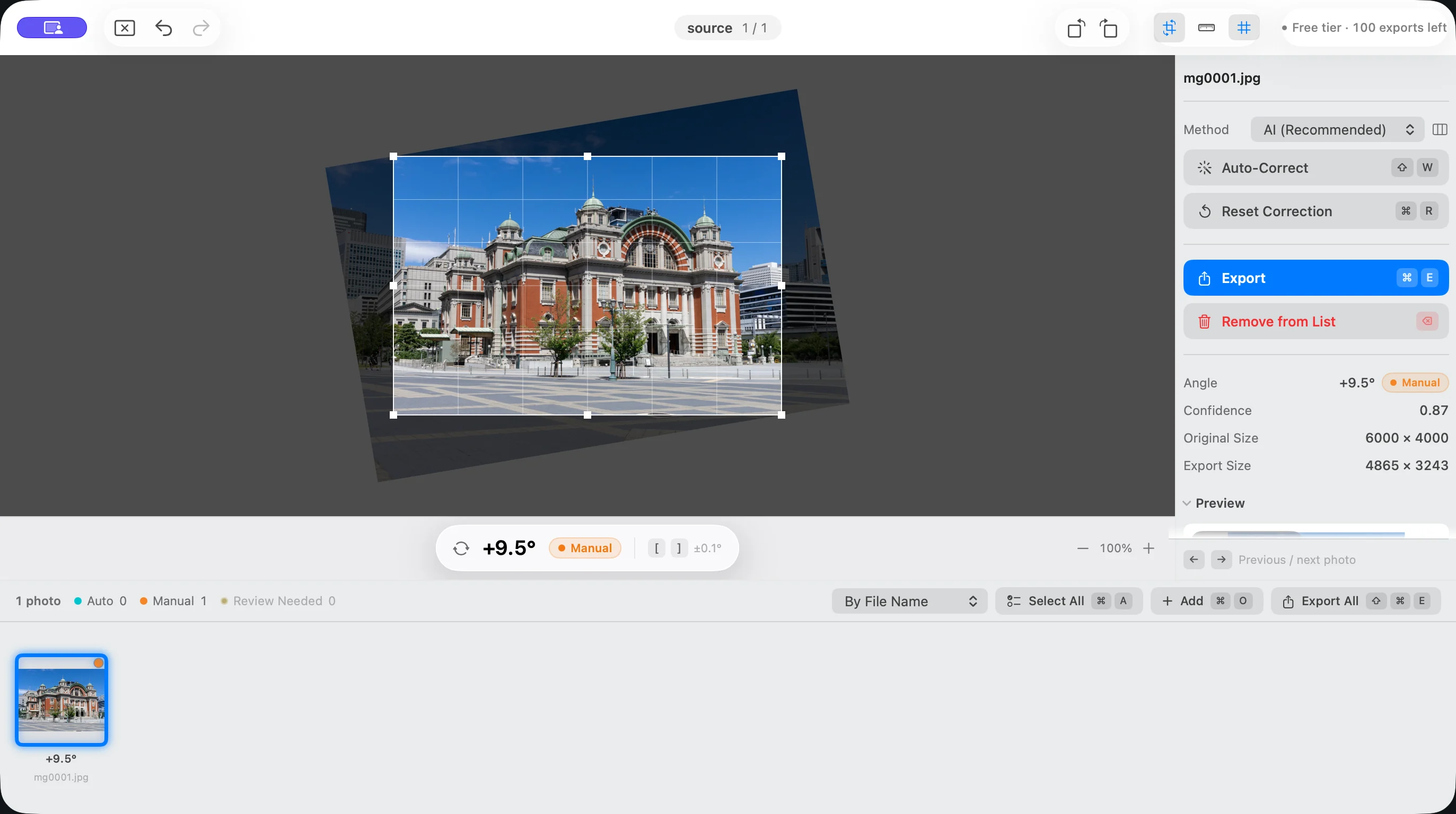
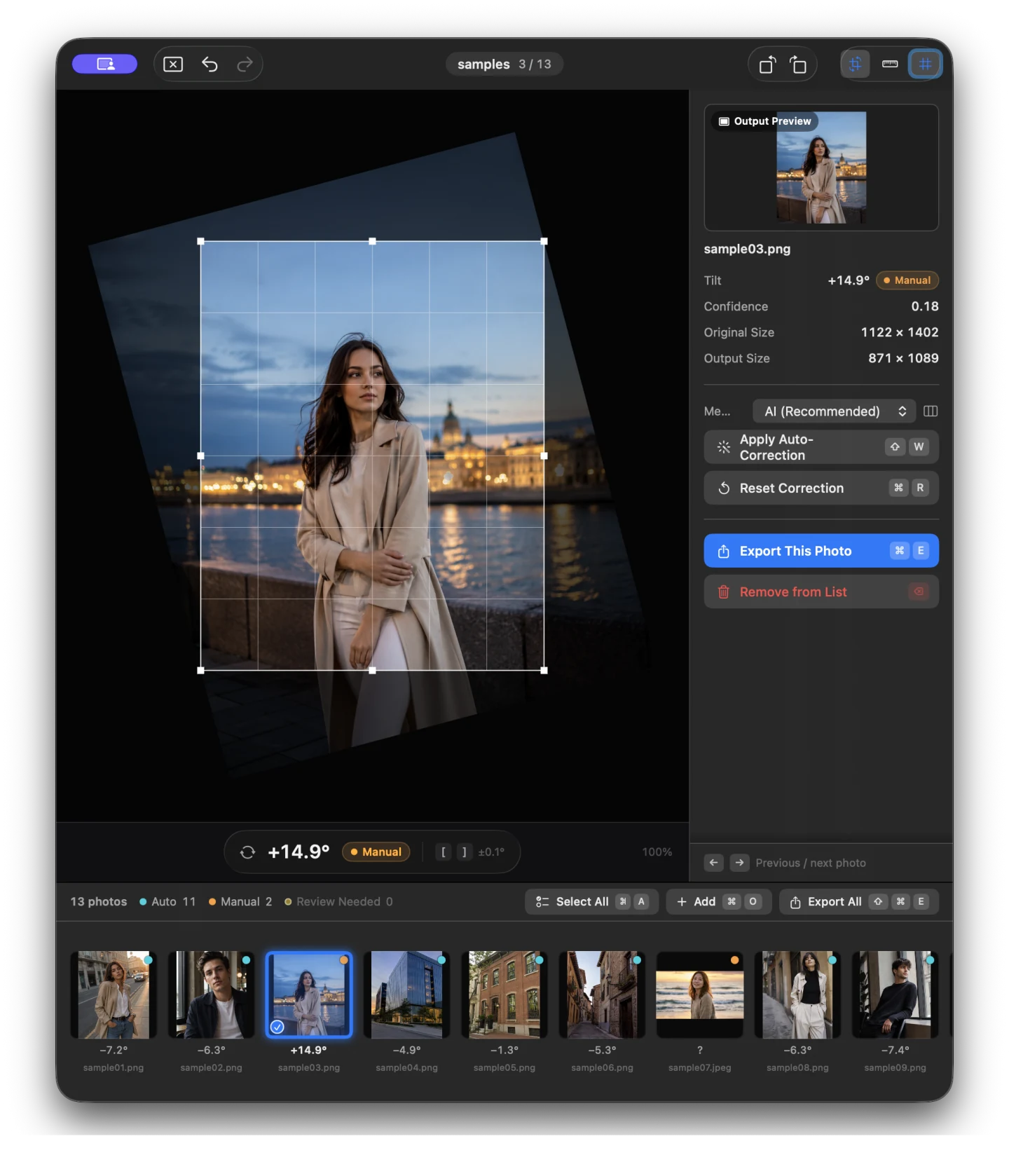
Suihei detects the tilt in each photo, then rotates and crops it automatically. After exporting from Lightroom or your usual editor, use Suihei to straighten a large set without overwriting the originals.

Mac App Store · coming soonCompare before and after
  • First 300 exports free
  • $24.99 one-time purchase
  • Photos stay on your Mac
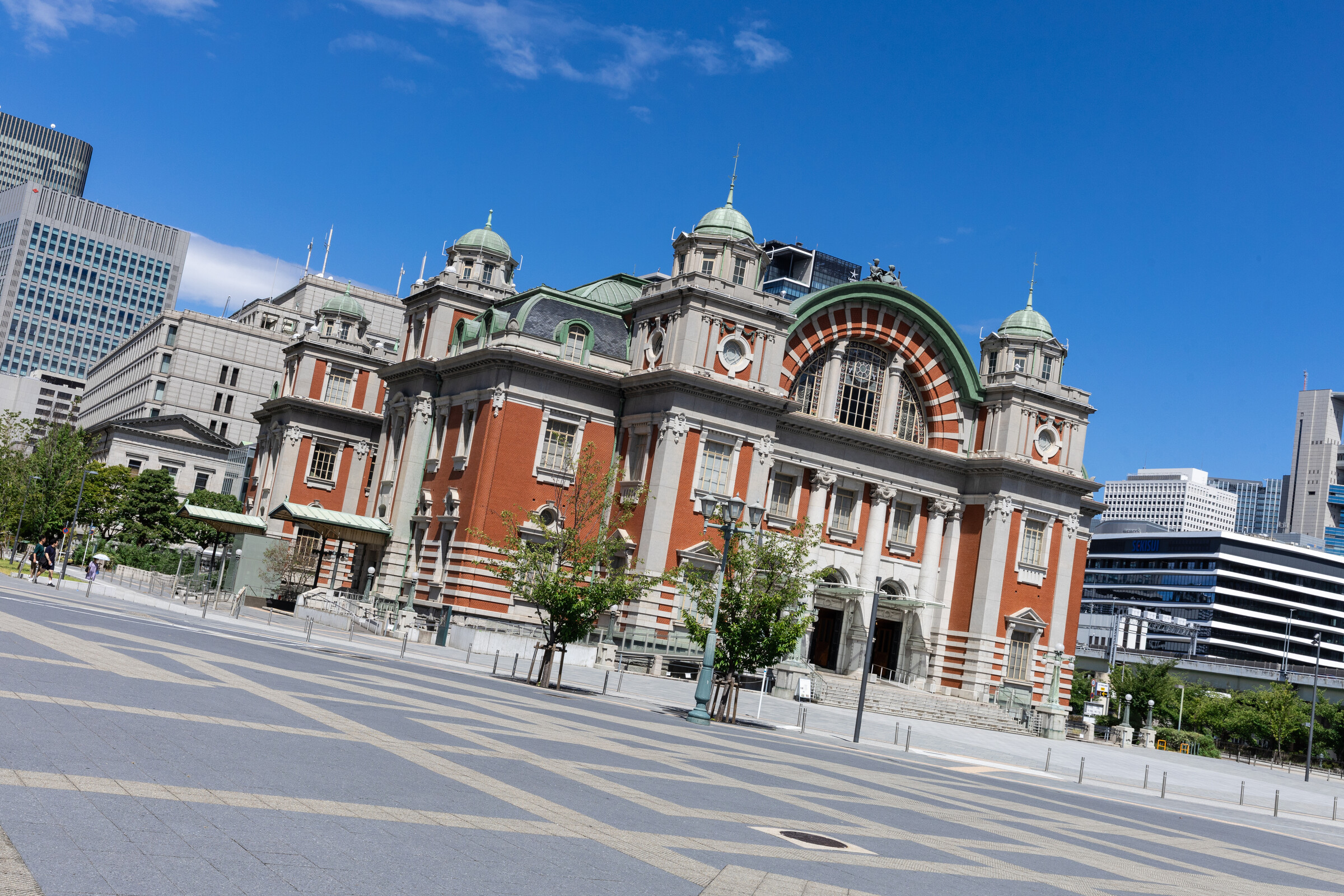
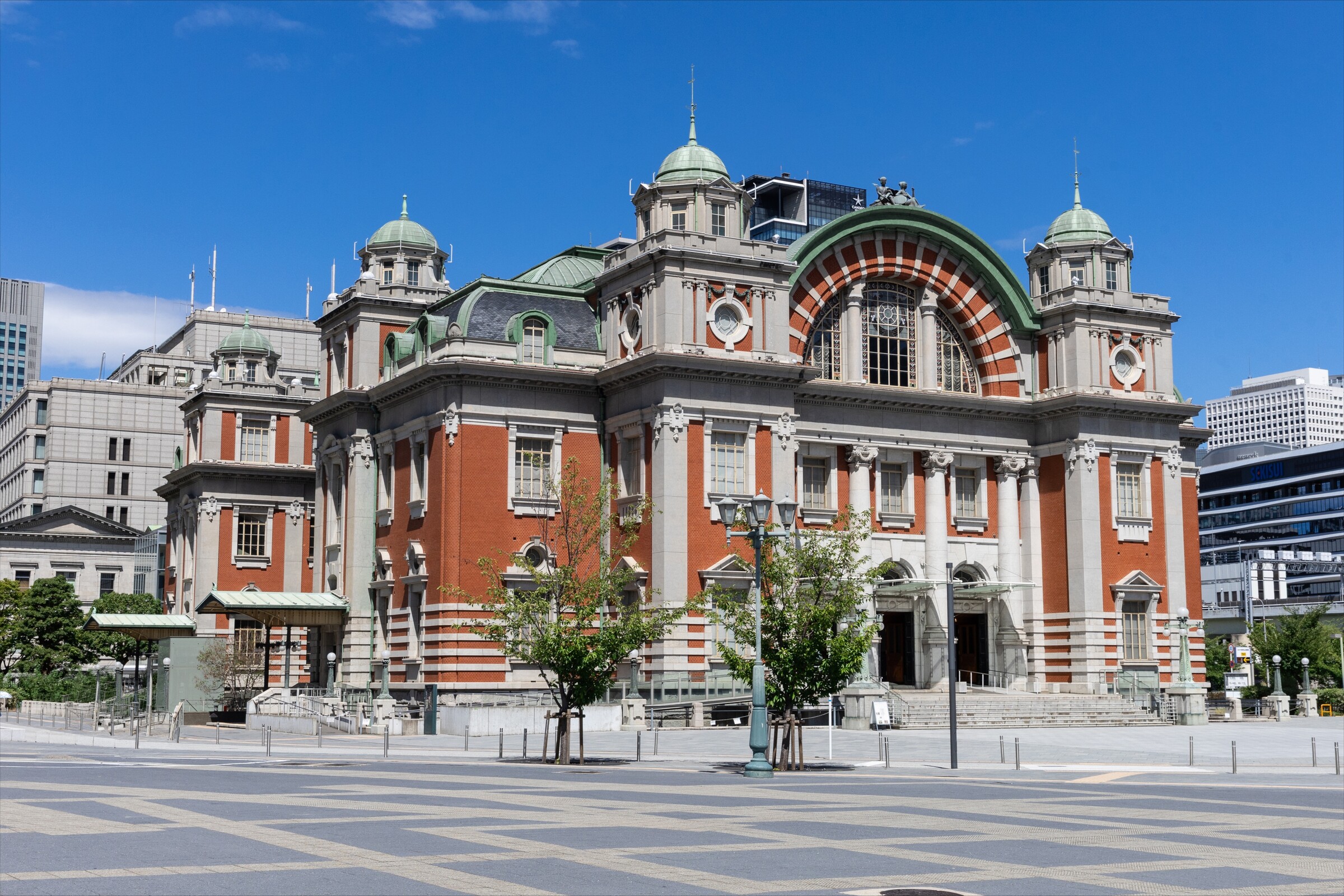
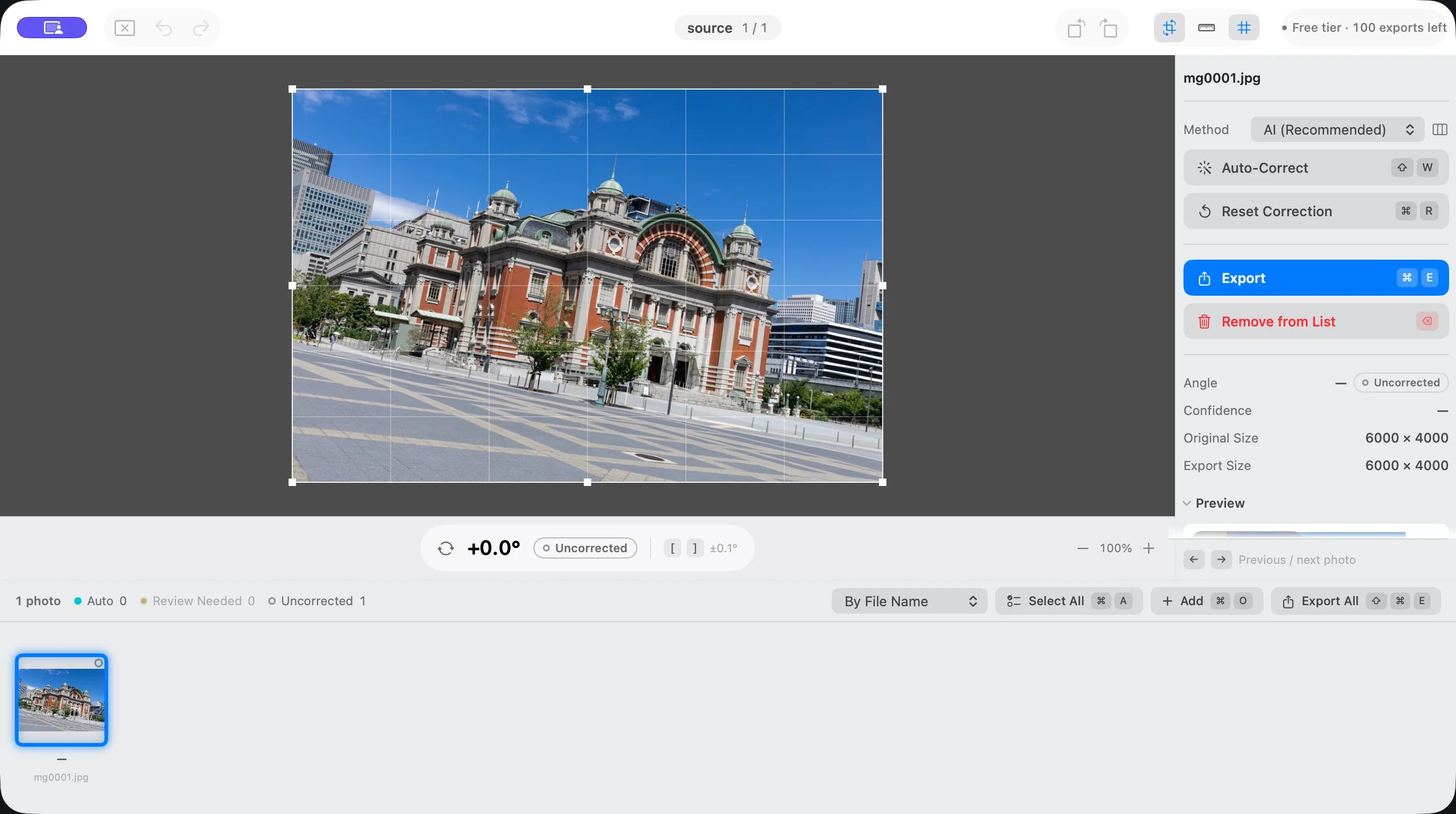
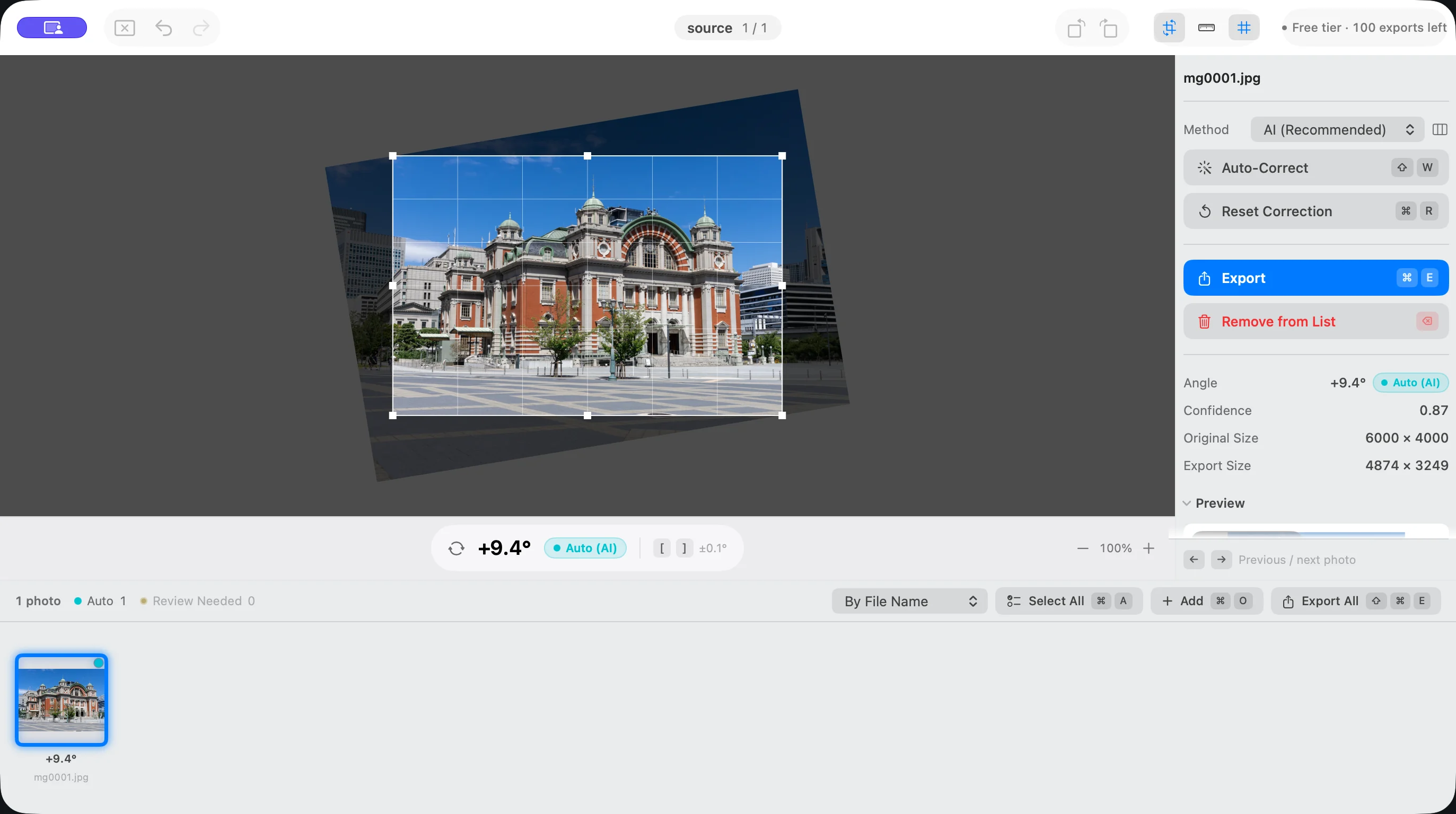
BEFORE -7.2°AFTER 0.0°
Move the slider to compare the original photo with the straightened crop.

A few seconds per photo adds up

Hundreds of photos should not mean hundreds of manual adjustments.

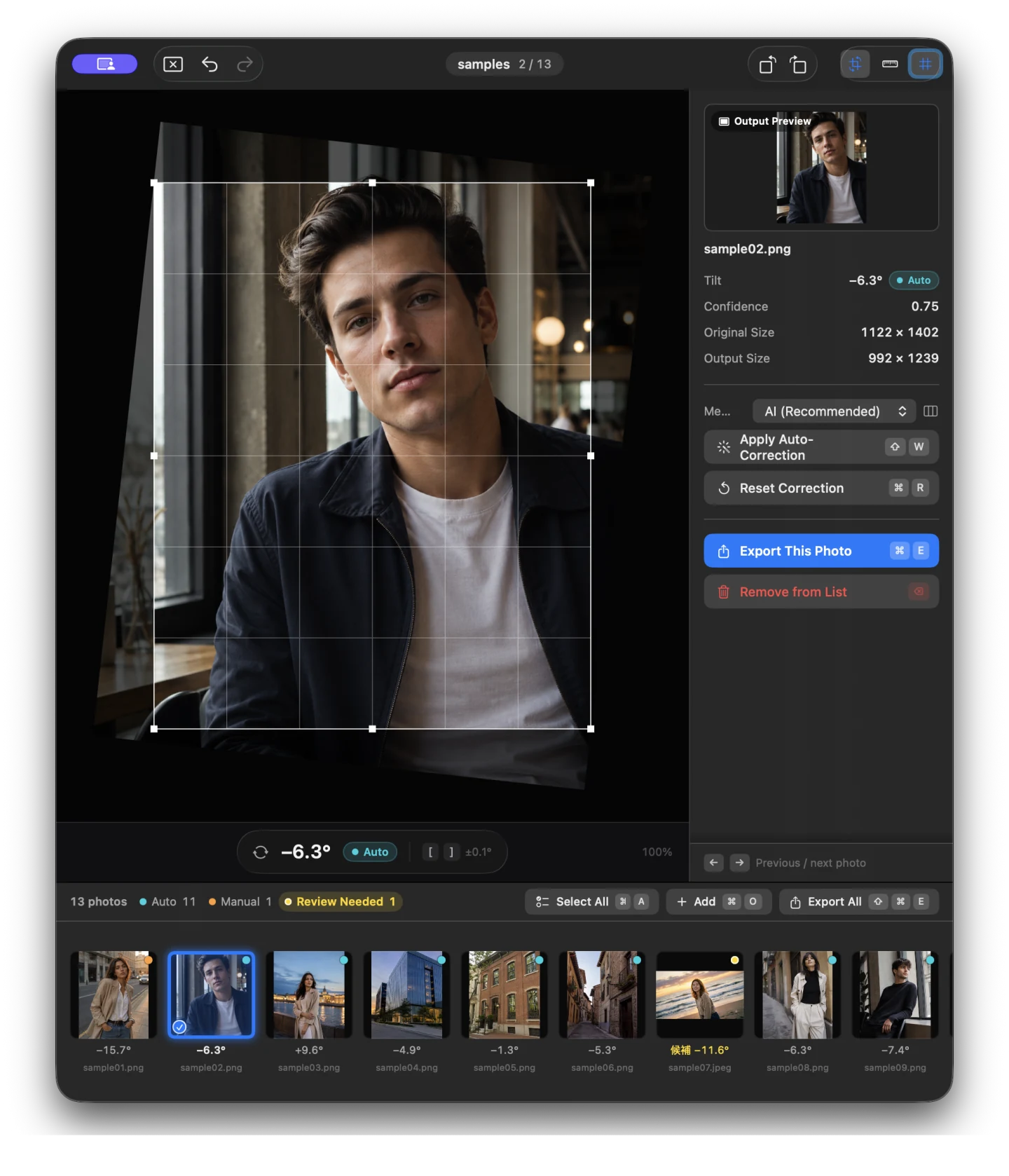
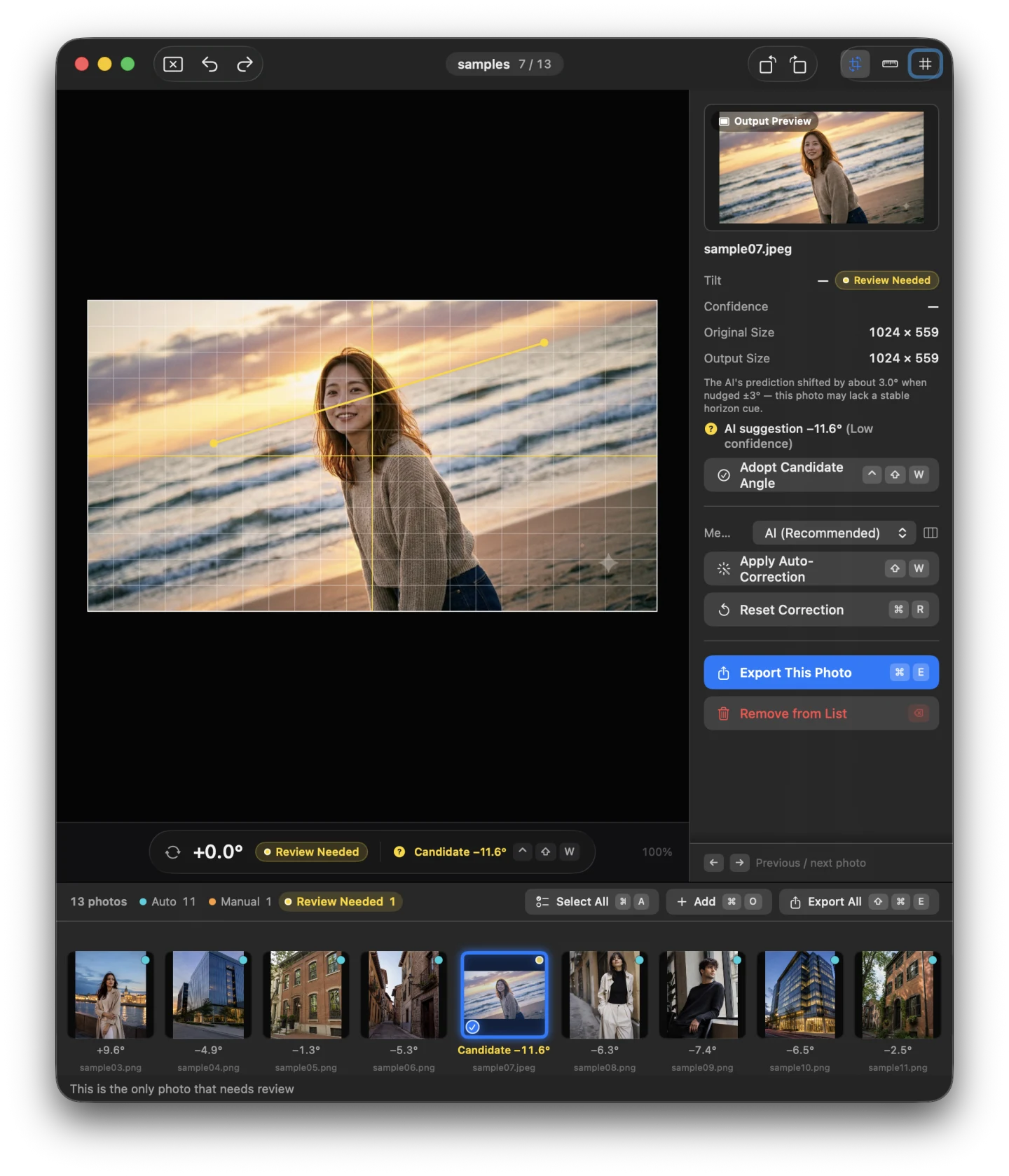
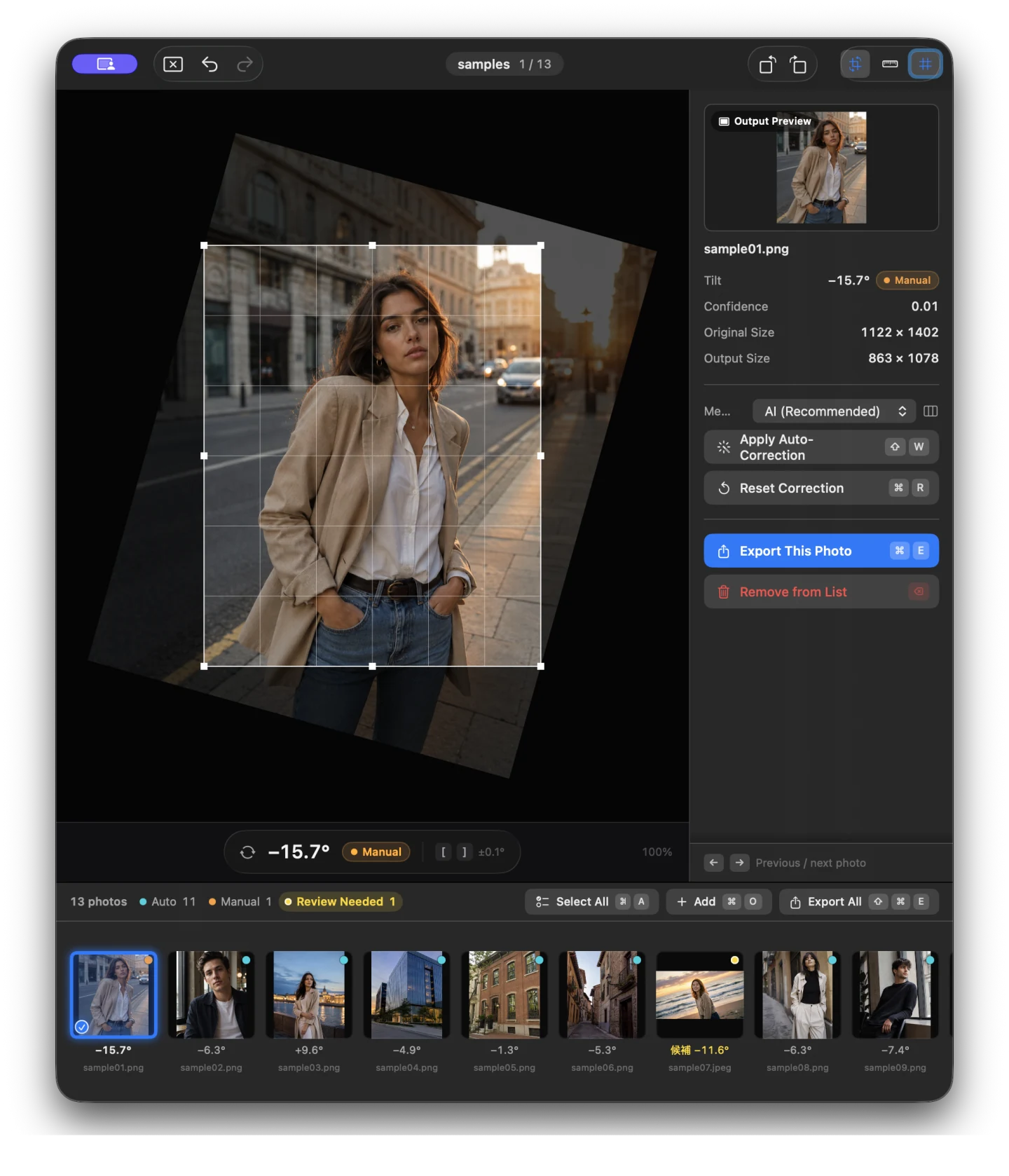
No two photos are tilted exactly the same way. Suihei measures each image separately, applies rotation and cropping across the set, and shows every result in one place. Review the batch, then adjust only the photos that need it.

Built for the final check

Each photo gets its own correction.

01

A separate angle for every photo

Suihei analyzes each image separately. It never applies one correction angle to an entire shoot.

One angle per photo
02

Switch methods when a result looks wrong

Suihei uses its built-in AI by default. If a result looks off, switch to Vision, which reads straight lines in the image, and choose the better preview.

AI detection + line detection
03

Crop out blank corners automatically

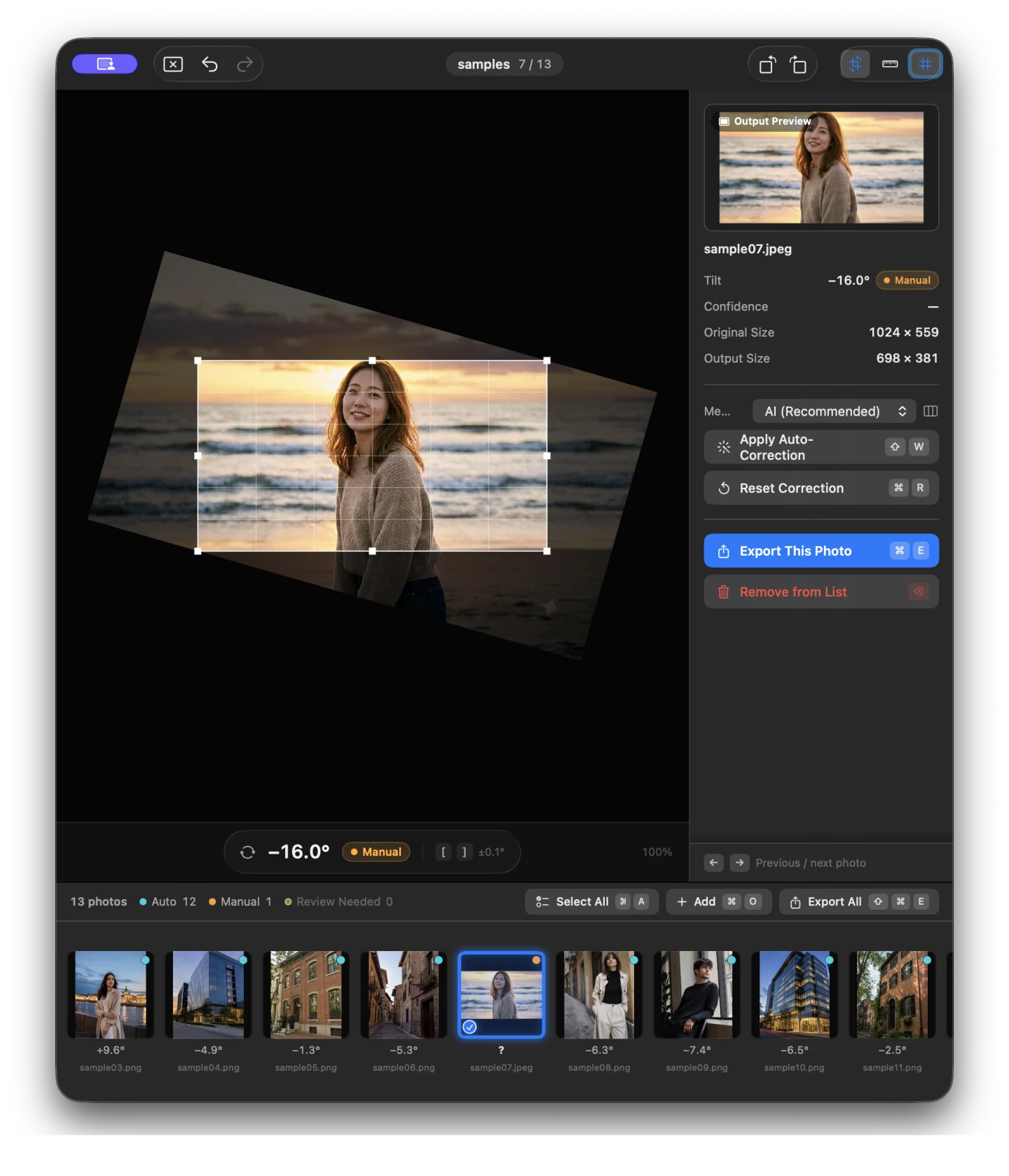
Rotating a photo creates empty corners. Suihei finds the largest clean rectangle that fits inside the image and crops automatically.

Auto crop after rotation
04

Keep the originals untouched

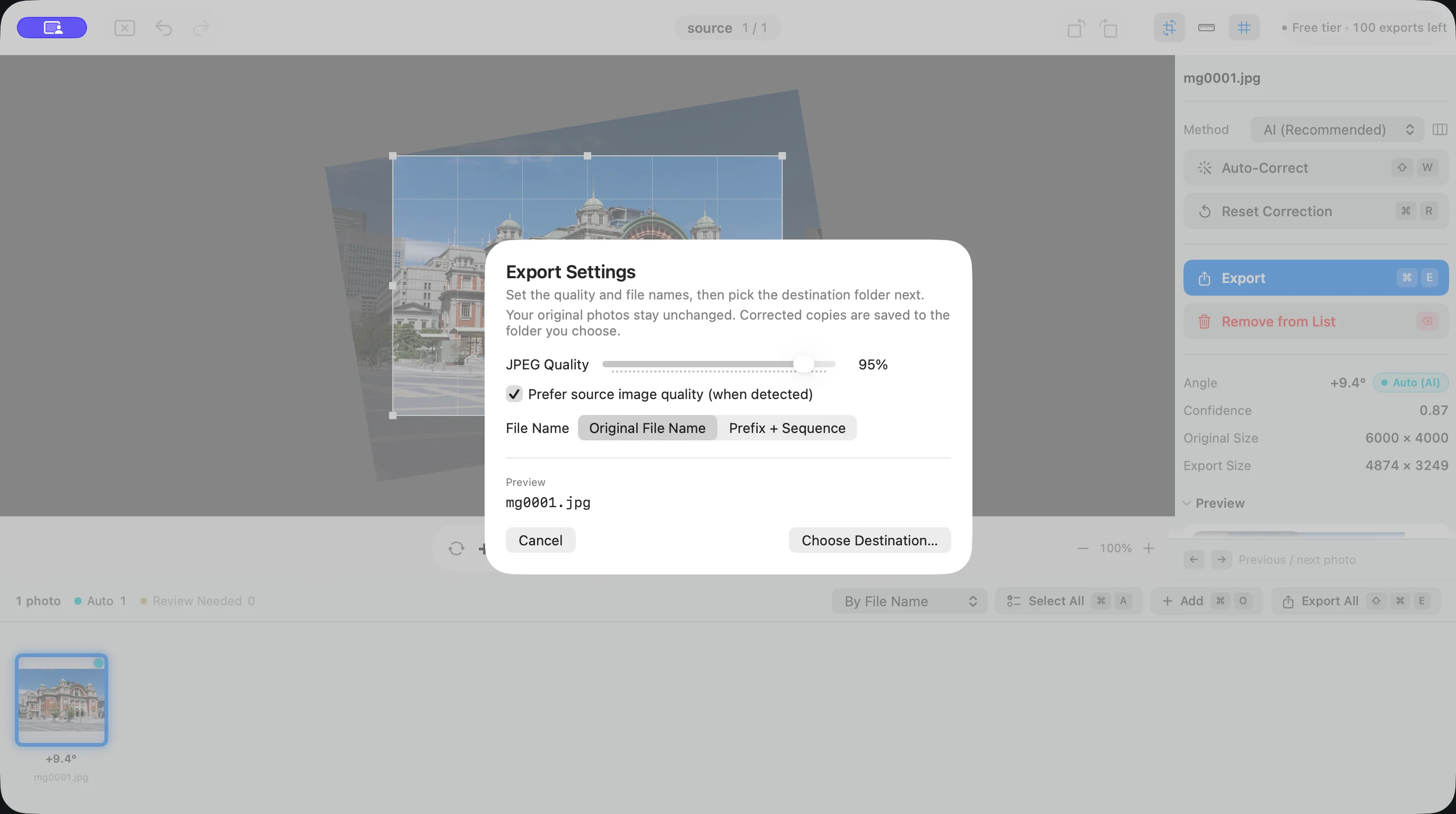
Suihei reads source files without changing them and saves corrected photos in a separate folder. It preserves supported EXIF metadata.

Saved as new files

After Lightroom. Before delivery.

Straighten an edited set in three steps.

  1. 1

    Open your exported photos

    Export from Lightroom or your usual editor, then open a folder or select JPEG, HEIC, and PNG files.

  2. 2

    Correct the batch

    Apply automatic straightening to selected photos or the full set. Review the results together and fine-tune any exceptions.

  3. 3

    Save corrected copies

    Choose an output folder. Suihei saves the corrected photos there and leaves the files you opened unchanged.

Keyboard shortcuts for repeated work

Review and adjust without reaching for menus.

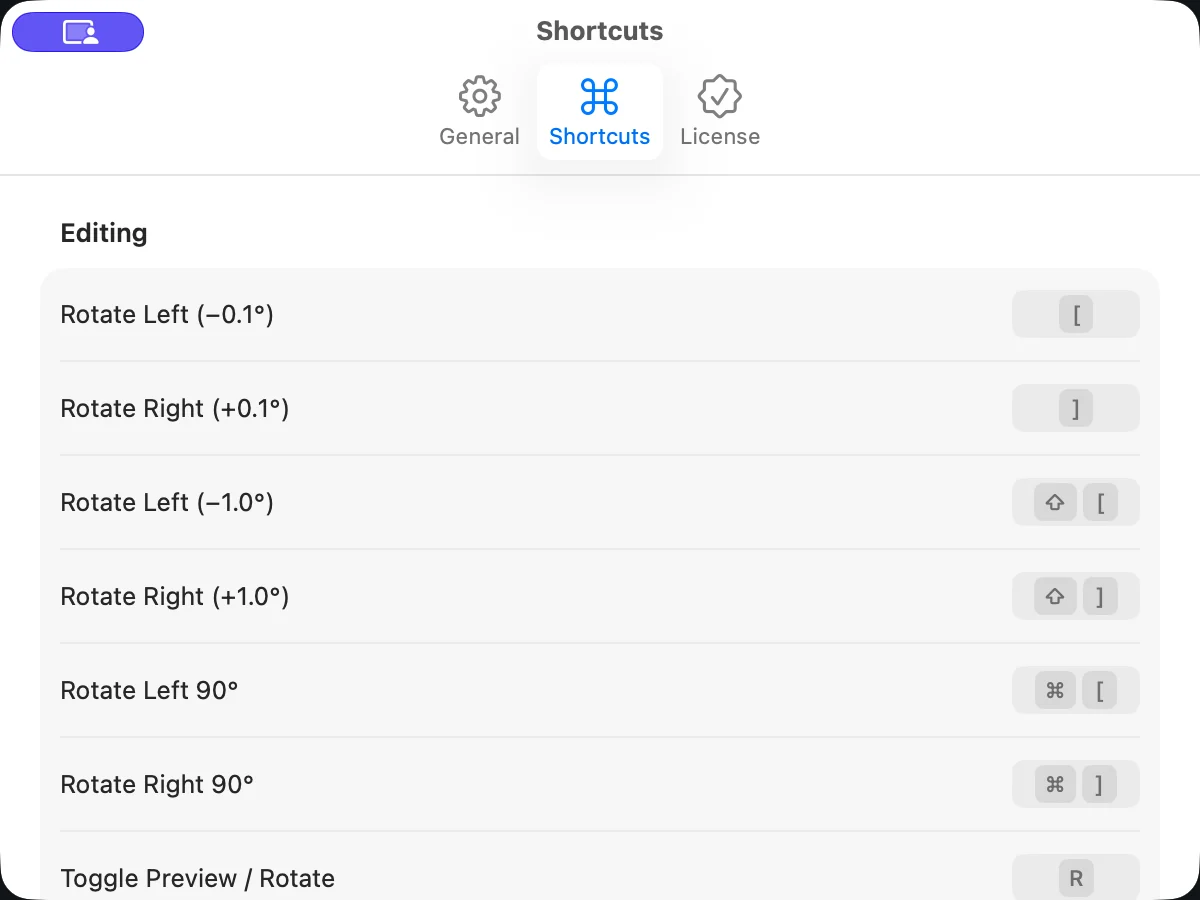
Use shortcuts to apply automatic correction, rotate in small increments, move the crop, select, undo, and export. You can remap every shortcut to match your current setup.

⇧ WApply auto correction
[ ]Fine rotation
⌥ dragTrace a level line
⌘ EExport selection

Your photos stay on your Mac

Suihei processes every photo locally.

The built-in AI runs on your Mac. Suihei never uploads your photos, and neither your photos nor your editing activity is used to train a model. Core image processing works offline. A connection may be needed to buy or restore a purchase.

  • No account
  • No ads
  • No tracking SDK
  • Sandboxed on macOS

After editing. Before delivery.

Make straightening the final check.

Export from Lightroom or your usual editor, then run the finished set through Suihei. Leave color and exposure to your main editor; use Suihei for the final straightening and cropping.

Try the first 300 exports free

Try it free, then pay once to keep exporting.

$24.99

One-time purchase · no subscription

FREE START

Your first 300 exports are free

There is no time limit. After 300 exports, you can still open, review, and edit photos. Buy Unlock Export once to keep exporting.

  • AI and line-based straightening
  • Batch correction and manual adjustments
  • JPEG, HEIC, and PNG input
  • Save and reopen sessions

Requires macOS 26.4 or later and Apple silicon.

Coming soon on the Mac App Store

What to know before you start

Common questions.

Why use a separate tool when my editor can straighten photos?

Suihei is designed for the final check on a large set. It straightens each selected photo separately, then lets you review the whole batch and adjust exceptions with keyboard shortcuts. The finished set is saved as new files.

Does Suihei edit color, exposure, or perspective?

No. Version 1 only corrects side-to-side tilt and crops away the empty corners created by rotation. Use your main editor for color, exposure, retouching, and perspective correction.

Are my images uploaded or used to train AI?

No. All angle detection runs on your Mac. Suihei does not upload your photos, and neither your photos nor your editing activity is used to train a model.

Will Suihei overwrite my originals?

No. Suihei reads source files without changing them and saves corrected copies in a folder you choose. Backups are still recommended for any professional workflow.

Is the $24.99 purchase a subscription?

No. Unlock Export is a one-time purchase for Suihei version 1. The first 300 exports are free, with no time limit.

For press and reviewers

A Mac utility built for one task: straightening photos.

Suihei is a photo utility for Mac, developed by Marginal Gains, Inc. in Osaka, Japan. Contact us for product details, review access, launch assets, or founder interviews.

Request press information
Category
Photography utility
Platform
Mac · Apple silicon
Business model
$24.99 one time
Processing
Local and offline

Spend less time checking horizons.

Finish the next set faster.

Suihei for Mac is coming soon.

App Store · coming soonContact the team
Google Forms